Connect existing applications
Use compatible clients and integrations with your OptimaGPT Gateway.

OPENAI-COMPATIBLE API
Use familiar OpenAI API patterns to connect supported applications to models running on infrastructure you control.
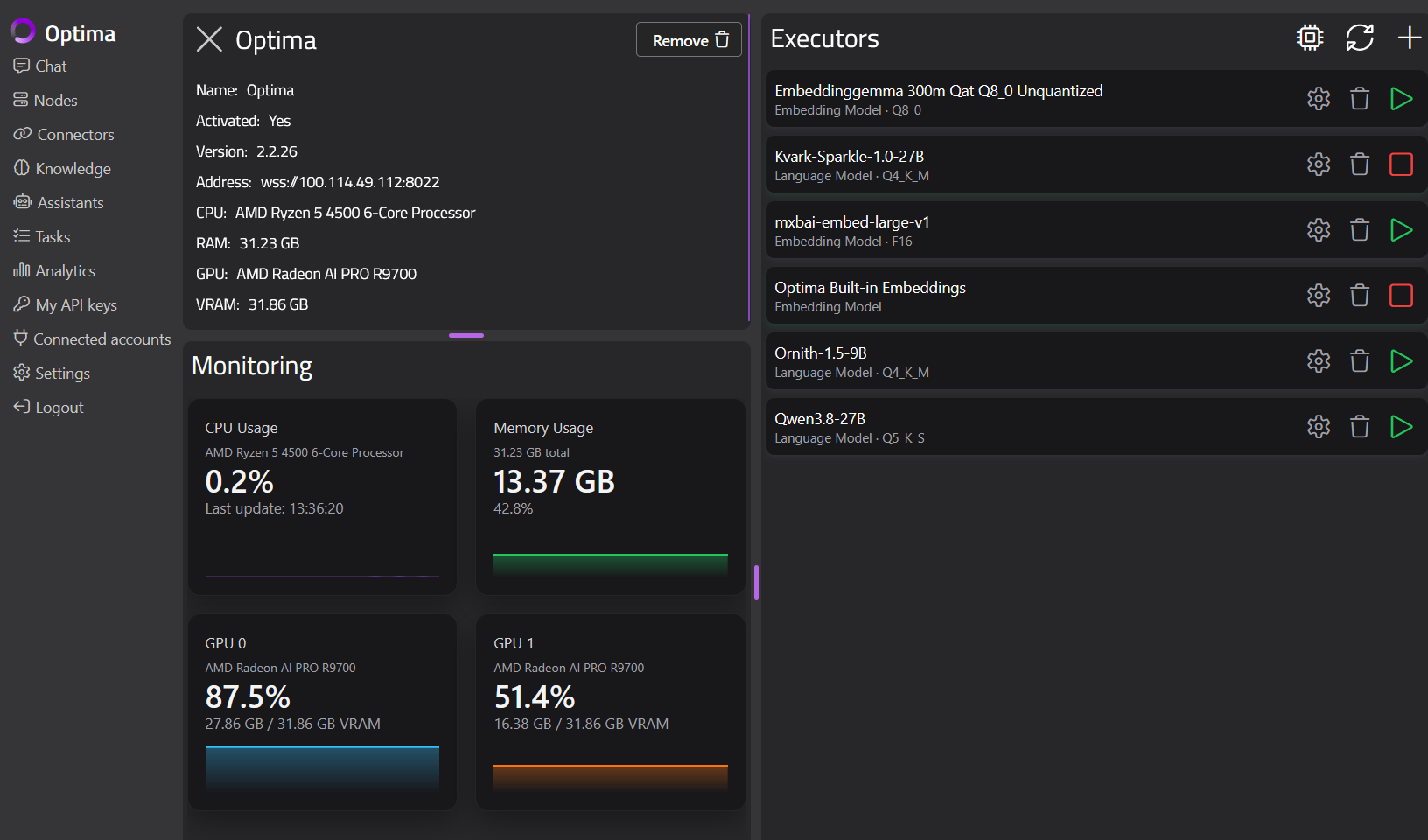
Bring private AI into support tools, automation and internal applications.
Use compatible clients and integrations with your OptimaGPT Gateway.
Host models on Optima Nodes and select the ones your applications need.
Manage API keys through the Gateway and decide which assistants applications can use.
Use the product documentation for the API base URL, authentication and supported requests.
Open the documentation ↗Connect a Node and make the model you want to use available.
Create a key and grant access to the assistant where needed.
Configure your compatible client with the Gateway URL and API key, then test a request.
Use locally hosted models in document, email and business automation workflows.
Explore ThinkAutomation →Connect private AI to live chat and customer service workflows.
Explore WhosOn →Give configured assistants access to selected tools and business data.
Explore Connectors →